Strike a Pose
Build a body and an arm, set the fig's kind, drag a pose, and save it by name.
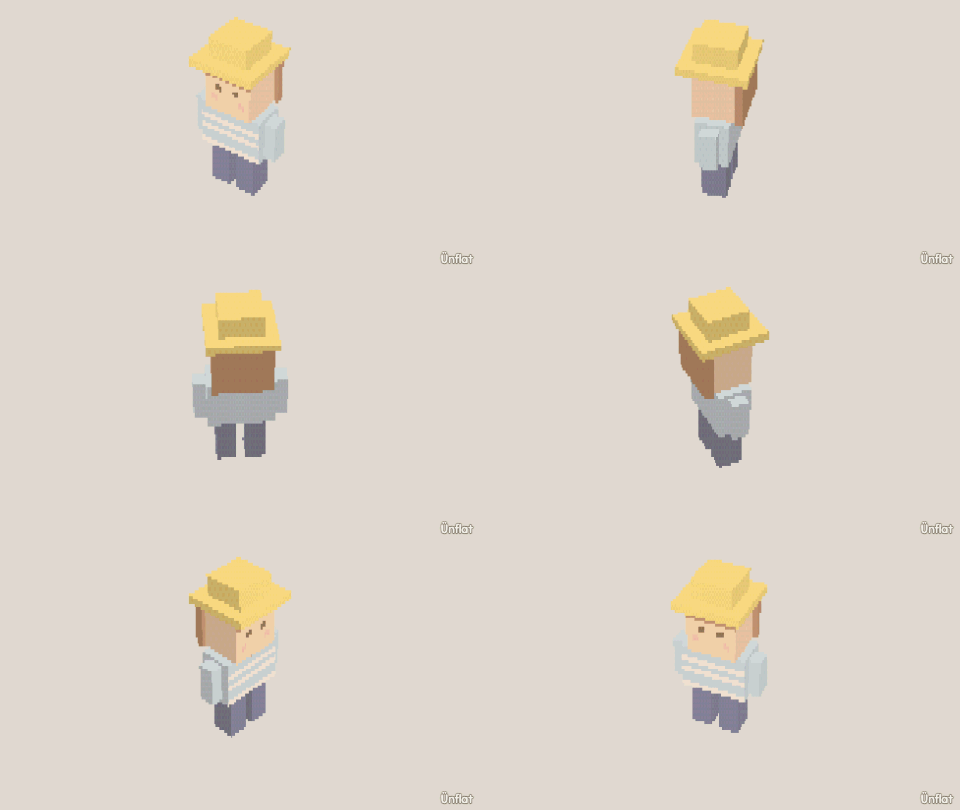
Video coming soon. The written walkthrough below is the whole build.
Written walkthrough
Set the fig’s kind under Rig once, then drag a pose and save it by name. This is the Strike a Pose card in the Learn tab.
1. Drop the body
Size the Cube tall with the steppers, tap open floor, and press Drop.
2. Drop an arm
Drop a Cylinder beside the body for the arm. Keep it its own piece so it can swing.
3. Tap it
Open the Animate tab and tap the fig. Every piece can move on its own, and each joint is at the spot where two pieces touch. See Parts .
4. Open Rig
Tap Rig, the first page in the list on the left. It starts with the fig’s kind.
5. Pick its kind
Under Kind, tap Person. It goes one part at a time: tap that part on the stage, then tap Next part. Tap Skip part for a part the fig does not have. A part can be a chain: keep tapping outward before Next part, and the forearm and hand follow the arm. When it is done, Assigned parts shows a box for each part. The arm’s box shows the name of the piece you tapped.
6. Open Hand pose
Open Hand pose. Tap the arm on the fig, or choose it in the Pose dropdown near the top of the page, under Showing.
7. Drag a pose
Drag the arm on the stage. It swings from the shoulder. The sliders under the dropdown (Swing, Turn) set the same pose by number. Bend shows Needs a bend area. until the arm has one: tap Set bend area, then tap the arm where the bend begins and then its tip.
8. Save the pose
Tap Save as… in the page header, name the pose, and tap Save. The pose is added to Saved poses. Use Showing, the first row of the page, to put a saved pose on the fig, and choose Working pose (not saved) to shape the fig again. Poses are saved with the fig, and a placed copy in a scene can use one from its Pose dropdown. See Poses .
To play poses in order, drag the arm to a second pose and save it too. Then open Move sets. In the Move set dropdown choose New move set…, name it, and tap Make it. Use Add a step to choose the first pose under Saved poses, then add the second. Each step opens with Takes, the seconds it takes to get to the pose, and Gets there, the ease. Tap ▶ Play in the page header. At the end sets the action after the last step: Start again, Hold the last pose or Go back to rest. See Move sets .
Hand pose also has Ready-made for the part you chose, and Compare with shows a saved pose behind the one you are shaping. See Hand pose .